
Adekunle Ajasin University, Akungba-Akoko (AAUA), located in Ondo State, Nigeria, is a leading state-owned institution renowned for its commitment to academic excellence and technological advancement. One of the university’s key tools for streamlining academic processes is the Adekunle Varsity Examination Results System (AVERS), an online platform designed to help students and staff manage academic records efficiently. For students, the AVERS portal is a vital resource for checking semester results, updating profiles, and accessing other academic services.
In this blog, we’ll provide a detailed guide on the AAUA AVERS portal, focusing on how students can create AAUA AVERS account, Login to AAUA AVERS, check their results, get CGPA records, troubleshoot common issues, and introduce Mobile App where you can calculate your CGPA automatically and carry out other School Task Management. Whether you’re a new or returning student of AAUA, this step-by-step guide will ensure you navigate the AVERS portal seamlessly.
What is the AAUA AVERS Portal?
The AAUA AVERS (Adekunle Varsity Examination Result System) is an online platform developed by Adekunle Ajasin University (AAUA) to facilitate academic and administrative tasks. It serves as a centralized hub where students can:
- Check their semester results
- Check Registered courses
- Update personal information
- Manage Carryover Courses
- Access CGPA Records, and other academic tools.
The AAUA AVERS portal/website is accessible via avers.aaua.edu.ng, and is designed to enhance efficiency, transparency, and convenience for students and staff. It is part of AAUA’s broader commitment to leveraging technology to improve the academic experience of their Staffs and Students.
Why Use the AAUA AVERS Portal?
The AVERS portal offers numerous benefits for students, including:
- Convenience: Access your results and academic records in real time from anywhere with an internet connection.
- Real-Time Updates: Results are uploaded as soon as they are available, ensuring timely access.
- User-Friendly Interface: The portal is designed to be intuitive, even for first-time users.
- Secure Access: With Matriculation numbers and passwords, your academic data remains protected.
- Multifunctionality: Beyond result checking, the portal supports course Reg overview, Carryover management, CGPA access and profile updates.
By mastering the AVERS portal, students can stay on top of their academic progress and administrative tasks with ease.
How to Check Your Results on the AAUA AVERS Portal
Checking your results on the AAUA AVERS portal is a straightforward process. Follow these steps to access your semester results:
Step 1: How to check your results on AAUA AVERS. Follow these steps to access AAUA AVERS account on the Official AVERS Portal:
- Open a web browser (Google Chrome or Mozilla Firefox is recommended for optimal performance).
- Go to the official AAUA AVERS portal at avers.aaua.edu.ng or the student login page at avers.aaua.edu.ng/student/login.
Step 2: Log In to Your Account:
- Enter Your Matriculation Number: Input your unique matriculation number provided by the university
- Enter Your Password: For first-time users, the default password is typically your surname in UPPERCASE. For example, if your surname is “Adebayo,” enter “ADEBAYO” as your password.
- Click the “Sign In” button to access your dashboard.
Note: If you’ve previously changed your password, use the updated one. If you encounter login issues, see the troubleshooting section below.
Step 3: Navigate to the Results Section; Once logged in, you’ll be directed to your student dashboard.
- Look for the “Results” or “Academic Records” section.
- You may need to select the academic session (e.g., 2024/2025) and semester (e.g., 1st or 2nd) to view specific results.
Step 4: View and Download Your Results.
- Your results will display, including grades, GPA, CGPA, and any outstanding or carryover courses (if available).
- You can download or print your results for record-keeping or official purposes.
- Log out of the portal when done to ensure the security of your account.
How to Create an AAUA AVERS Account (For First-Time Users)
If you’re a new student or haven’t accessed the AVERS portal before, you may need to activate your account. Here’s how:
- Visit the AVERS Portal: Go to avers.aaua.edu.ng.
- Use Your Matriculation Number: This is your unique identifier, provided upon admission.
- Activate Your Account: If your matriculation number isn’t recognized, contact the AAUA ICTAC (Internet Communication and Technology Application Centre) for activation.
- You may need to provide your phone number and create a unique seven-digit password.
- Log In: Use your matriculation number and default password (your surname in UPPERCASE) to log in for the first time.
- Update Your Password: For security, change your password after your first login by following the “Reset Password” link and instructions sent to your registered email or phone.
Troubleshooting Common AVERS Portal Issues
Students may encounter challenges when using the AVERS portal. Here are solutions to common problems:
1 Invalid Login Credentials
Issue: “Invalid Student Login” or blank page after login. Solution: Ensure your matriculation number is correct. Verify that your account has been activated by the University If not, contact the AAUA ICTAC for assistance. Clear your browser cache and try again.
2 Forgotten Password. Solution: Click the “Reset Password” link on the login page. Provide your matriculation number or registered email.
Follow the instructions sent to your email to reset your password. However, you may have to contact AAUA ICTAC to get Password reset code before you can reset your password.
Results Not Displaying
Issue: Results are not yet available or not uploaded. Solution: Results are uploaded progressively. Check back later or contact your department or ICTAC to confirm if results have been released.
Browser Compatibility
Issue: The portal doesn’t load correctly. Solution: Use a laptop or desktop with a stable internet connection and a modern browser like Chrome or Firefox. Avoid using outdated browsers or mobile apps with compatibility issues. For persistent issues, visit the AAUA ICTAC at the Senate Building, Computer Science Department, or School Café opposite Pioneer Hostel. The ICTAC is the university’s technical support hub for all portal-related queries.
Additional Features of the AAUA AVERS Portal: Beyond result checking, the AVERS portal offers a range of functionalities like:
- Course Registration Overview: Students can access all their registered courses from the Edu Portal on their avers. If the courses are not up to date, kindly click on “Course Synchronization” to update your data.
- Profile Updates: Update personal details, such as phone numbers and email addresses, to ensure accurate communication.
Tips for Using the AAUA AVERS Portal Effectively
Secure Your Login Details: Never share your matriculation number or password with others.
Check Regularly: Monitor the portal for updates on results, course registration deadlines, and announcements.
Use a Stable Internet Connection: Slow or unstable connections can disrupt your experience.
Bookmark the Portal: Save avers.aaua.edu.ng for quick access.
Contact Support When Needed: Reach out to the AAUA ICTAC or use the university’s official contact channels for assistance.
CGPA Mobile App Calculator
For added convenience, MyQuest App offers a mobile App that allows all Students across all Schools be able to calculate their CGPA automatically and get result in realtime. All you have to do is to download App, register for free and input your course codes, grade, score and click on calculate. Your GPA will pop-up for you to see and save. Below is the interface for the GPA calculator on MyQuest App.
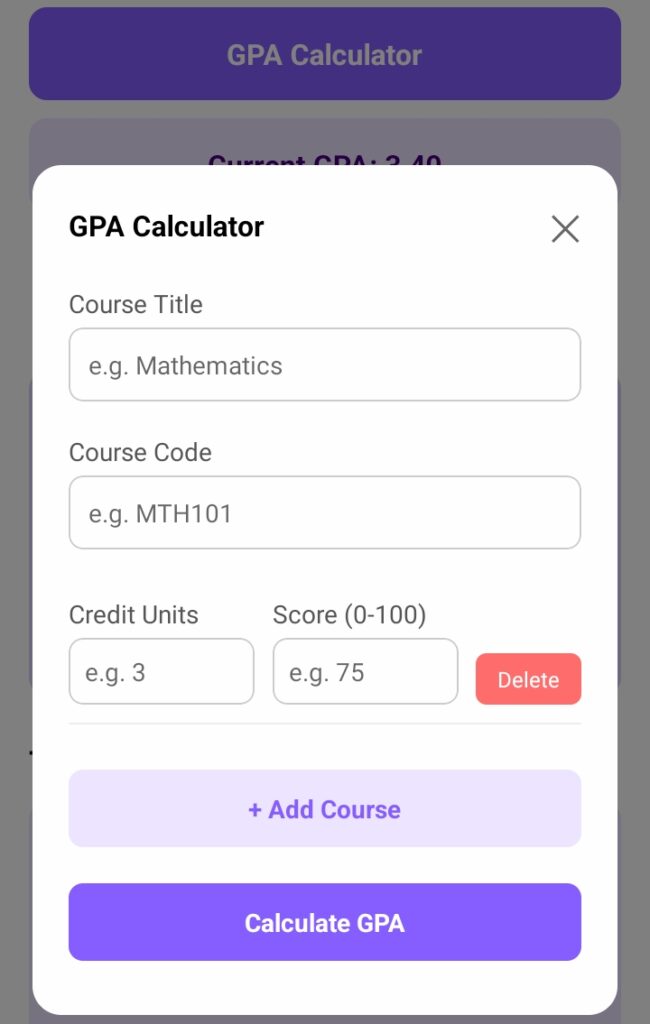
MyQuest App will calculate the GPA for you instantly and you can keep track of your academic records. Once your Login, navigate to HUB to see the Calculator. Aside the CGPA Calculator, you can also practice all your GSTs and ENTs courses on the App, you can also use our AI tools for your academic activates and assignments.
Registration is FREE. Download the App now and start using. Remember to share it to all your friends. MyQuest App is available on PlayStore and App Store – Download For PlayStore or Download for AppStore.
Why AAUA’s AVERS Portal Stands Out
The AVERS portal reflects AAUA’s commitment to embracing technology for academic excellence. Unlike traditional result-checking methods, which often involve long queues and paperwork, AVERS provides a digital solution that saves time and enhances transparency. The platform is regularly updated to meet the needs of students and staff, ensuring a seamless academic experience.
Conclusion
The Adekunle Ajasin University AVERS portal and MyQuest CGPA Calculator are indispensable tools for students looking to manage their academic journey efficiently. By following the steps outlined in this guide, you can create AAUA AVERS account, check your results, Calculate CGPA, courses overview, and access other services with ease. Whether you’re a freshman or a final-year student, mastering the AVERS portal and MyQuest App will help you stay organized and informed.
For additional support, contact the AAUA ICTAC or visit the official university website at https://aaua.edu.ng. Stay proactive, keep your login details secure, and take full advantage of this powerful platform to excel in your studies at AAUA.
Have questions about the AVERS portal or MyQuest App or need help with a specific feature? Drop your comments below, and we’ll respond promptly. Share this guide with fellow students to help them navigate the portal effortlessly.
About the Author


